
Scanner inbox integration
The Scanner Inbox Integrations page is where your company connects supported intraoral scanner inboxes to the ZAnGeSa service.
Core idea: Connect all supported scanner inboxes in one place – collect all incoming scanner cases centrally in the Case Inbox.
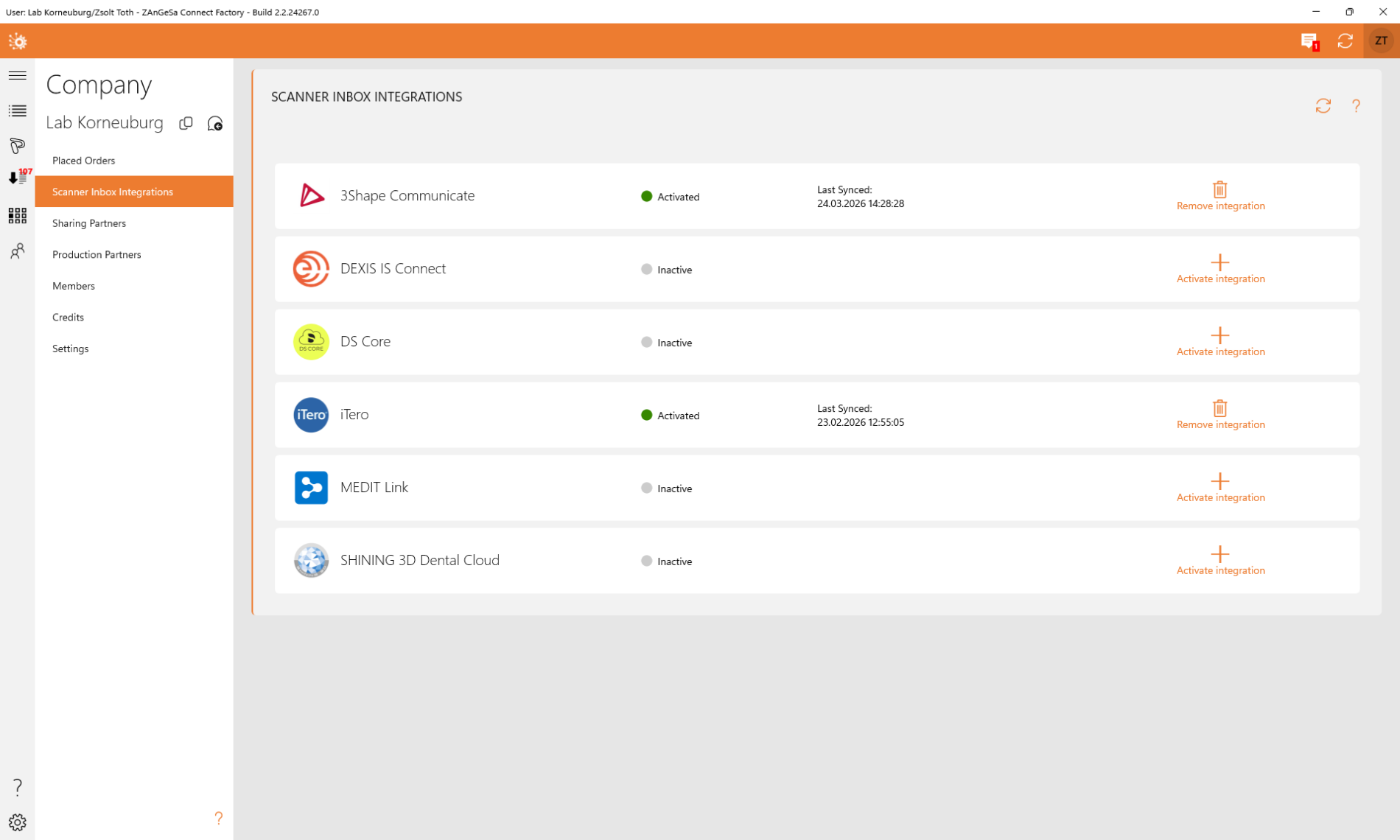
Supported connection model
Scanner inboxes are connected on the company level.
This means the connection belongs to the company, not to a single employee.
Each company can connect multiple scanner inboxes, but only one inbox per supported vendor can be connected for the same company.
Why use Scanner Inbox Integrations?
Connecting scanner inboxes helps your team:
- collect incoming scanner cases in one place
- reduce manual checking across multiple vendor portals
- monitor connection health centrally
What is shown on the page?
For each configured integration, the page can show:
- the vendor or inbox name
- the current connection state
- the date and time of the last successful sync
- a warning when synchronization is interrupted (action is required)
Getting started
To set up the connection please check the dedicated webpage: Getting started: Connect your IOS inbox
Connection types
Vendor authorization flow
The majority of the scanner platforms require a browser-based authorization flow. In this case, the user is redirected to the vendor login page and must complete the authorization there.
If the authorization expires later, the connection must be refreshed by signing in again.
Login-based connection
The Medit Link connection uses direct username/password authentication during setup.
If the stored credentials are no longer valid, the integration may stop synchronizing until the credentials are updated.
Last sync and warnings
The page helps users quickly identify whether the integration is healthy.
- Last sync was recent (within the last 10 minutes) – the connection is working normally. Please check the additional details about the Shining 3D sync mechanism below
- Last sync is outdated – the connection may need attention,
a connection issue is reported after 4 hours of outage
as IOS vendor portals may have temporary outages
- Warning shown – the user should verify authentication, credentials, or credits/storage status
Troubleshooting
The integration shows a warning and no new cases arrive
Possible causes:
- the vendor authorization has expired
- stored login credentials are no longer valid (Medit Link)
- the company has run out of available credits
- the company storage is full
- the vendor-side connection needs to be reauthorized
-
an outage exists on the vendor side
What to do:
- Open the Scanner Inbox Integration page
- Check the Last sync timestamp
- Reconnect or sign in again if the connection asks for authentication
- Check whether your company still has available credits and storage
- Check the Case Inbox warning area for cloud-storage related notices
The scanner integration is connected, but no cases appear in the Case Inbox
Possible causes:
- there are currently no new cases available in the source inbox
- synchronization has not completed yet
- storage or credit limits are blocking collection
- conversion or data fetching failed
What to do:
- Check the integration status and Last sync value
- Refresh the Case Inbox filters to ensure the case is not hidden
- Verify that your company has enough storage and credits
- If the integration still does not update, reconnect it
- Contact ZAnGeSa support and provide information about the missing case
Shining 3D cases do not arrive as expected
Some integrations may behave differently from polling-based systems.
If Shining 3D synchronization appears delayed or inconsistent, verify the integration status first. If the connection looks active but cases still do not arrive, contact support and include the integration name and IOS case details.
Best practice
- Act on warnings early
- Reconnect expired authorizations promptly
- Verify login data after password changes
- Clean up storage before it reaches the limit
-
Adjust your subscription plan to match the number of received IOS cases
or purchase additional credits over the Company → Credits page