
Getting started: Connect an IOS inbox
This page explains how to connect your IOS inbox to ZAnGeSa so incoming scanner cases can be collected and shown in the Case Inbox.
Core idea: Connect your scanner inbox once and collect incoming IOS cases centrally in the Case Inbox of your company.
Before you start
Before connecting an IOS inbox, make sure that:
- you are logged in to ZAnGeSa,
- you are part of a company in the ZAnGeSa Connect,
- you have valid login credentials for the scanner platform you want to connect.
How to connect an IOS inbox
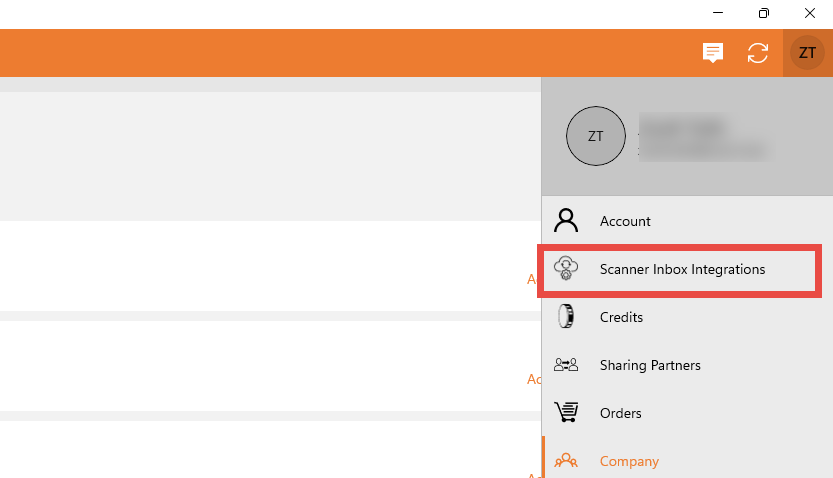
To connect a scanner inbox, open the Scanner Inbox Integrations page in your Company submenu and select the scanner platform you want to connect.
In general, the setup follows these steps:
- Open the Scanner Inbox Integrations page.
- Select the IOS platform you want to connect.
- Start the connection or authorization process by pressing the + button.
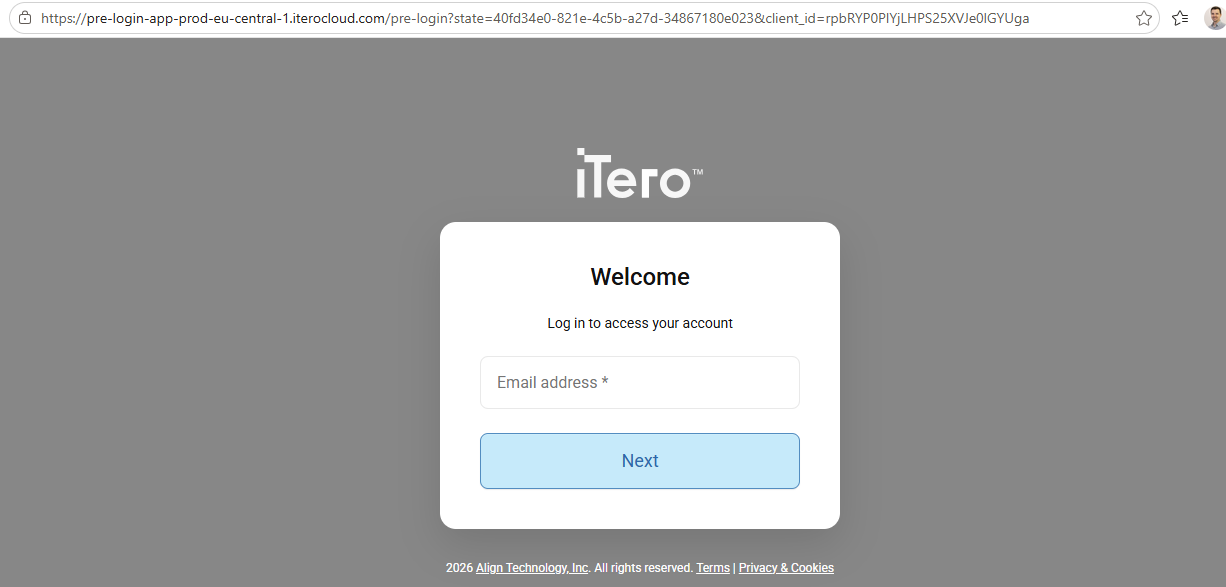
- If required, you will be redirected to the vendor login page.
- Sign in with the credentials of your inbox.
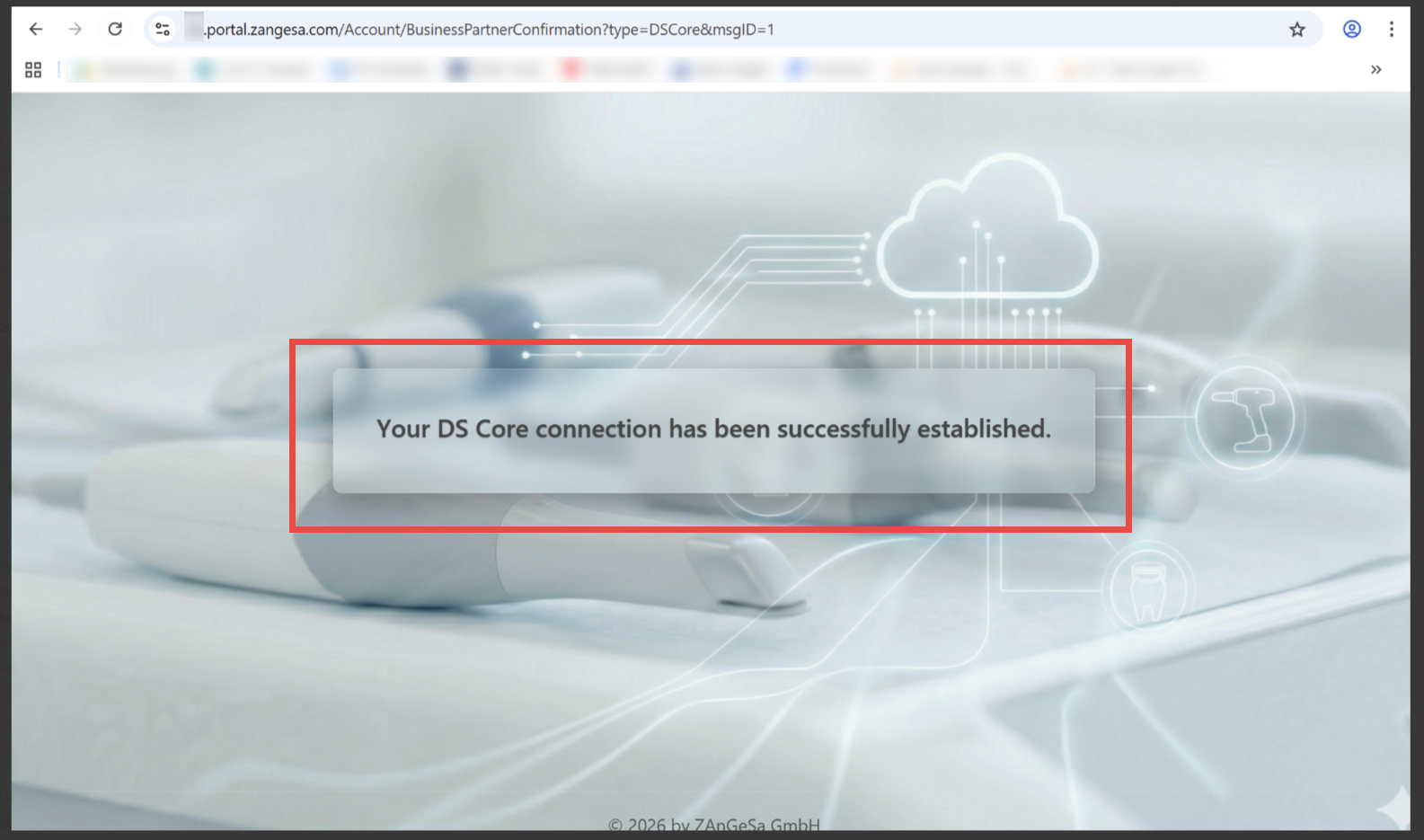
- After a successful login, you will be redirected to a page showing if the connection was setup successfully.
- If the vendor-based registration or login was successful, refresh the Scanner Inbox Integrations page to see the updated connection status.
- If you do not refresh manually, the correct connection status will also appear during the next regular refresh of the application.
- Wait for the first successful synchronization. Please allow some time for the first cases to appear, as synchronization runs every 10 minutes.
- If you run into problems please check the Troubleshooting section below.



Supported scanners
The setup flow may differ slightly depending on the scanner platform. The supported IOS systems include:
- DS Core
- 3Shape
- iTero
- Medit Link
- Shining 3D
- DEXIS
Special setup for Shining 3D
Shining 3D requires an additional registration step on the Shining 3D side before the inbox connection can be completed in ZAnGeSa.
To connect your Shining 3D Dental Cloud inbox, you must authorize your Shining 3D Dental Cloud institution data for use with the ZAnGeSa platform.
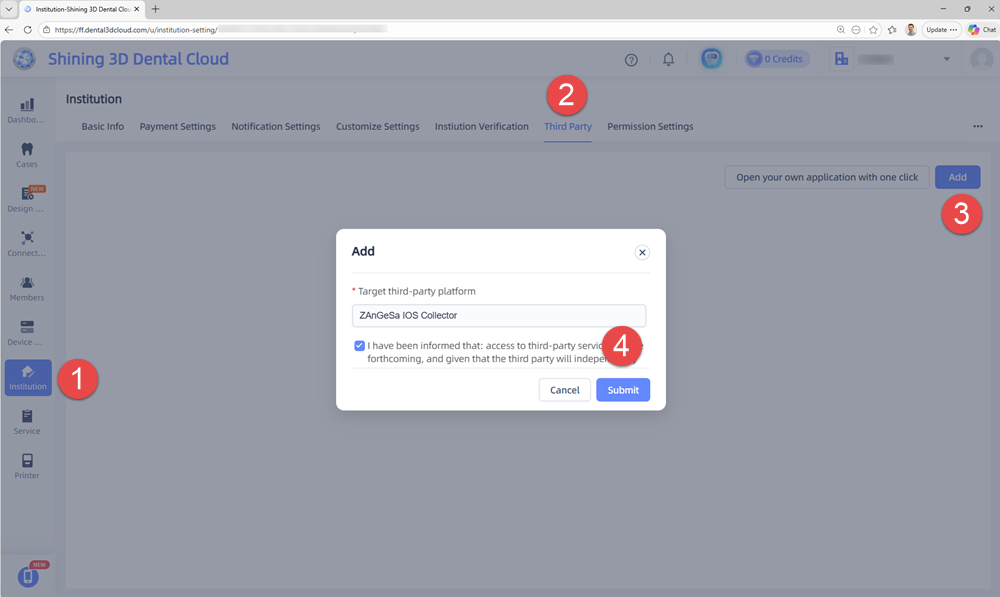
Please open your Shining 3D Cloud Platform and navigate to:
Cloud Platform → Institution Settings → Third Party → Add
Enter “ZAnGeSa IOS Collector” and click Submit.
After submitting the registration on the Shining 3D platform:
- Confirm that you have submitted the connection for “ZAnGeSa IOS Collector”.
- Press OK.
- You will be redirected to the Shining 3D Dental Cloud inbox login page.
- Sign in with your credentials.
- In case of success you are redirected to a page showing that the connection was successfully setup.
- Refresh the Scanner Inbox Integrations page to see the updated connection status.
After the connection
Once the connection is active, incoming IOS cases will be shown in the Case Inbox.
The first cases appear after the first successful sync. Synchronization runs automatically every 10 minutes, so please allow a short time for the first cases to appear in the Case Inbox.
If the company activates an IOS inbox connection for the first time and the first case is fetched, the company may automatically receive a trial license, depending on the current licensing setup.
Troubleshooting
The vendor login page does not open or the connection does not complete successfully
- If the vendor login does not complete successfully, first log out of the vendor webpage and then try again.
- This helps ensure that the redirect to the vendor login page works correctly.
The connection status is not updated immediately after login
- Refresh the Scanner Inbox Integrations page to see the correct connection status.
The first cases do not appear immediately
- After a new connection is created, the first cases appear only after the first successful synchronization.
- The synchronization runs automatically every 10 minutes.
- If no cases appear immediately, please wait for the next sync cycle and then check the Case Inbox again.
The login credentials do not work
- Verify that the login credentials are correct.
- Try to sign in directly on the vendor’s inbox webpage using the same username and password.
- If the login does not work there either, the issue is related to the vendor credentials and must be resolved first.
iTero is already paired with another integration
- iTero can be paired with multiple integrations, but if an active connection with another service already exists, it may need to be disconnected first. Reach out iTero support to disconnect these connections.
- If the ZAnGeSa connection cannot be completed, verify whether another integration is already using the same iTero pairing.
Shining 3D connection does not work
- Make sure that the required registration step on the Shining 3D platform has been completed.
- Make sure that the correct region is selected on Shining 3D side during the connection with the Shining 3D Cloud platform.
- The connection logic currently supports only Shining 3D accounts linked to a single lab. If the user’s setup in Shining 3D contains multiple labs, the connection may not be successful.
iTero pairing outside the EMEA region
- Outside the EMEA region, there may be issues with the automated iTero pairing process.
- In such cases, ZAnGeSa may need to contact iTero and initiate a manual pairing process.
- If you experience this issue, please contact ZAnGeSa Support.
The connection still does not work
- If the connection still cannot be completed, please contact ZAnGeSa Support.
Best practice
- Verify the IOS inbox credentials.
- If the vendor page behaves unexpectedly, log out first and then retry the connection.
- For Shining 3D, complete the third-party registration on the vendor side before continuing in ZAnGeSa.
- After a successful vendor login, refresh the Scanner Inbox Integrations page to see the updated connection status.
- Please allow some time for the first cases to appear, as synchronization runs every 10 minutes.
- If iTero pairing fails outside the EMEA region, contact ZAnGeSa Support.