
Case Inbox
The Case Inbox is the central place where your company receives and manages incoming digital cases.
Core idea: One shared inbox for incoming shared cases and IOS cases – one consistent workflow for the whole company.
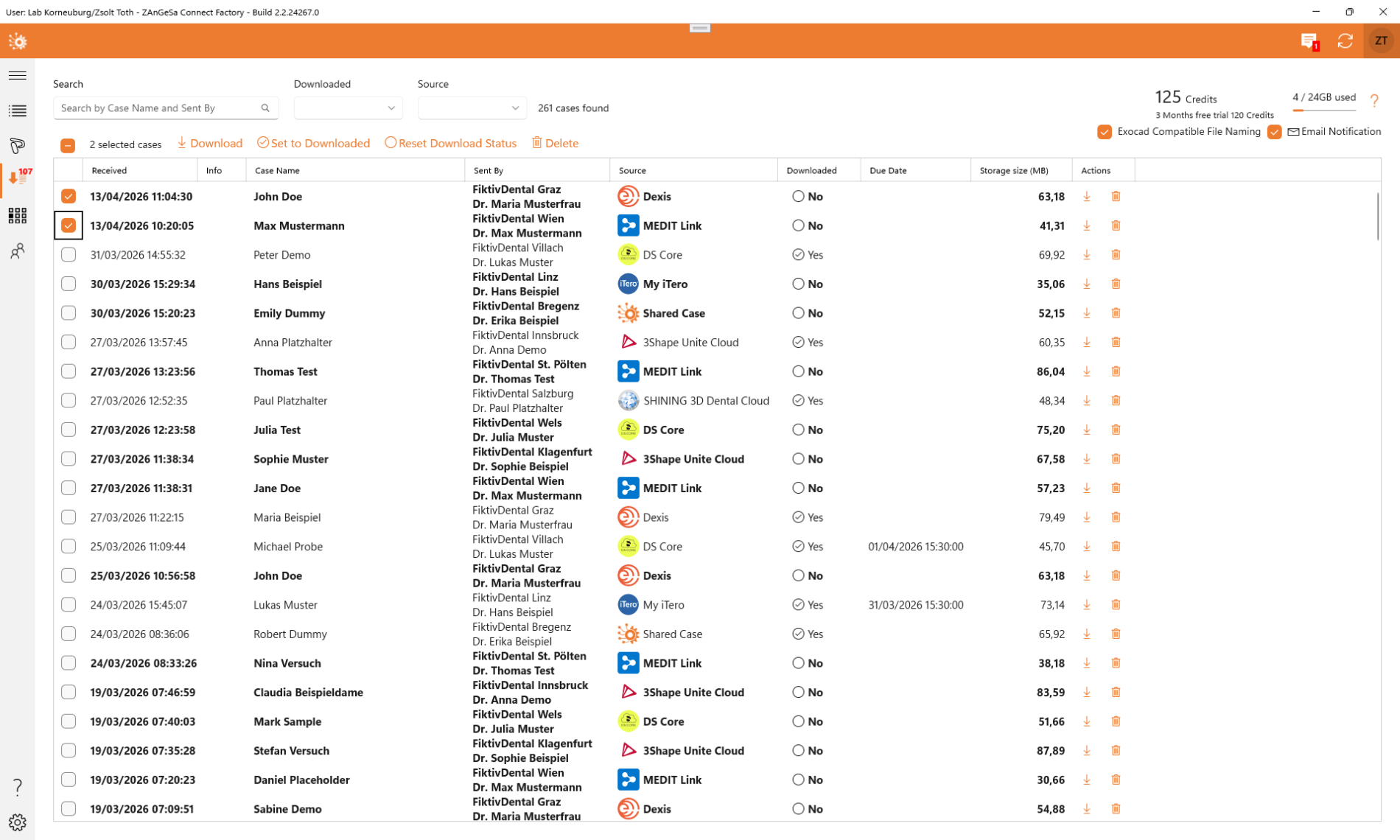
What is the Case Inbox?
The Case Inbox brings together two types of incoming data in one list:
- Shared cases sent from another company through ZAnGeSa sharing
- IOS cases received from connected scanner inbox integrations (from DS Core, 3Shape, iTero, Medit Link, Shining 3D or Dexis)
The Case Inbox is designed for company-based collaboration. Cases are stored in your company’s cloud space and can be accessed by all company members.
Getting started
To use the Case Inbox, you must be part of a company.
- Create a company, or
- Join an existing company
If you are not yet part of a company, the Case Inbox page will guide you to the relevant company setup options.
What information is shown?
Each row in the Case Inbox shows the most important case information at a glance.
- Received – the date, when the case was imported from an IOS system or when it was shared
- Info – information about the case (in pdf or html format) generated by the given IOS system. Not supported by all IOS systems
- Case Name – the case name
- Sent By – for shared cases: sending company and sending user; for IOS cases: clinic and doctor if provided by the scanner platform
- Source – ZAnGeSa Share or the connected IOS vendor
- Downloaded – status if the case was downloaded
- Due date – if available, depends on the API of the IOS system
- Storage size (MB) – the size of the case in the cloud storage, in megabytes
The actions section of the row allows to download or delete the case from the cloud storage.
Cloud space, credits and warnings
At the top of the page, users can see how much of the company’s cloud storage is currently in use and how much credits the company has. When a case is fetched from an IOS inbox, 1 credit is used per case.
If the available storage or credits amount drops below the warning threshold, a warning is displayed on the page so the team can react early.
until space becomes available again or additional credits are assigned.
Downloaded status
Each case has a Downloaded status.
- When a case is downloaded, it is automatically marked as Downloaded
- Any company member can manually change the status back to Not downloaded
- The left navigation can show the number of cases that are still Not downloaded
Available actions
- Download a case
- Mark as downloaded
- Mark as not downloaded
- Delete one or more cases
Deleting cases requires confirmation to avoid accidental removal.
How downloads work
When a case is downloaded, it is copied into the local project folder of the logged-in user.
A case can be downloaded more than once. This is useful if:
- the data needs to be re-imported,
- another team member also needs a local copy, or
- the case should be downloaded again after changes in the project folder
There is a related option ‘Exocad Compatible File Naming’ which affects the downloaded case. Once this option is selected the download renames the scan files to follow the exocad naming convention. This helps you to have a seamless integration with exocad CAD, so you do not have to select manually the scans to be loaded in the CAD.
Filtering, search, and sorting
The Case Inbox supports filtering and sorting so users can quickly find the relevant cases.
- Filter by IOS vendor
- Filter for shared cases only
- Filter for downloaded or not downloaded cases
- Use text search across supported columns
The list can also be sorted by available columns such as date, sender, project name, or size.
To keep the page responsive, the inbox shows a limited result list. Filters and search help narrow down the visible items.
Email notifications
Users can subscribe to email notifications when new cases arrive in the inbox.
Important:
-
Users can only subscribe themselves to notifications
- If a user leaves the company, that user is automatically removed from the notification list
Company-based sharing
The Case Inbox is based on a company-to-company model.
- Cases are shared between companies, not between individual users
- The receiving company can see which company sent the case
- The receiving company can also see which user initiated the share
A company can also share a case with its own company, for example for internal transfer between locations or as a backup workflow.
Best practice
- Review new cases regularly
- Filter for Not downloaded to see what still needs attention
- Delete obsolete cases to keep storage under control
-
Use email notifications for users who are responsible for the first-level intake of new cases